 Jigsea
How to play
Jigsea is a cooperative jigsaw puzzle that runs in your browser. You and anyone else looking at the same puzzle share one board, and pieces move in real time as anyone drags them. This page walks through every control you'll need.
Getting around
Pan the board
Click and drag on an empty part of the board to move your view. You can also use W, A, S, D, or ↑, ←, ↓, →. Hold Shift to pan faster.
Zoom in and out
Scroll with the mouse wheel to zoom. The view zooms toward your cursor, so point at the spot you want to inspect before scrolling.
Pick a background
The swatches in the top bar set the colour behind the pieces. Each colour makes a different kind of edge easier to spot, so try them all when a piece is hard to read against the current one.
Go fullscreen
Press F or click the fullscreen button in the bottom right to hide the browser frame and give the puzzle the whole window. Press F again to leave.
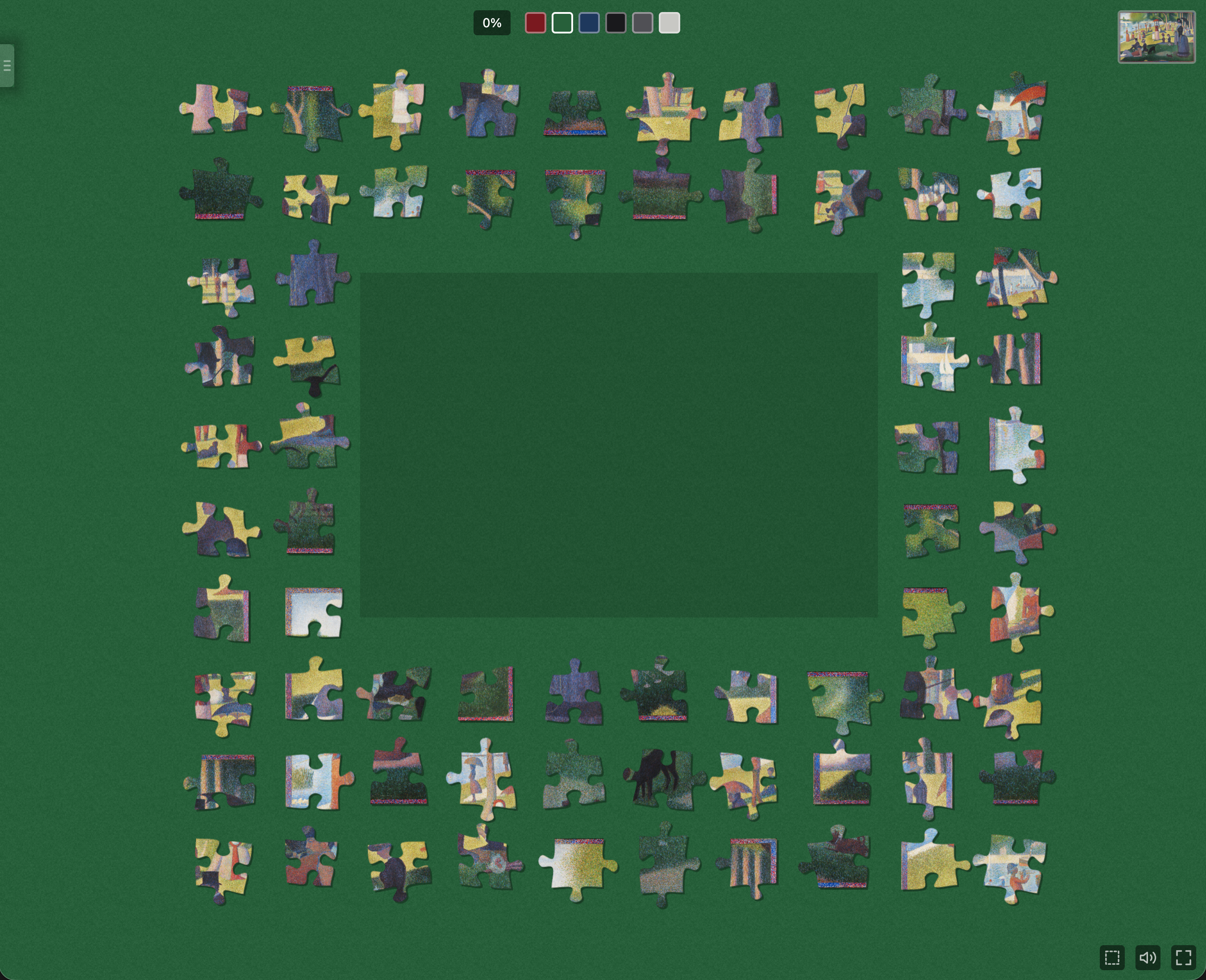
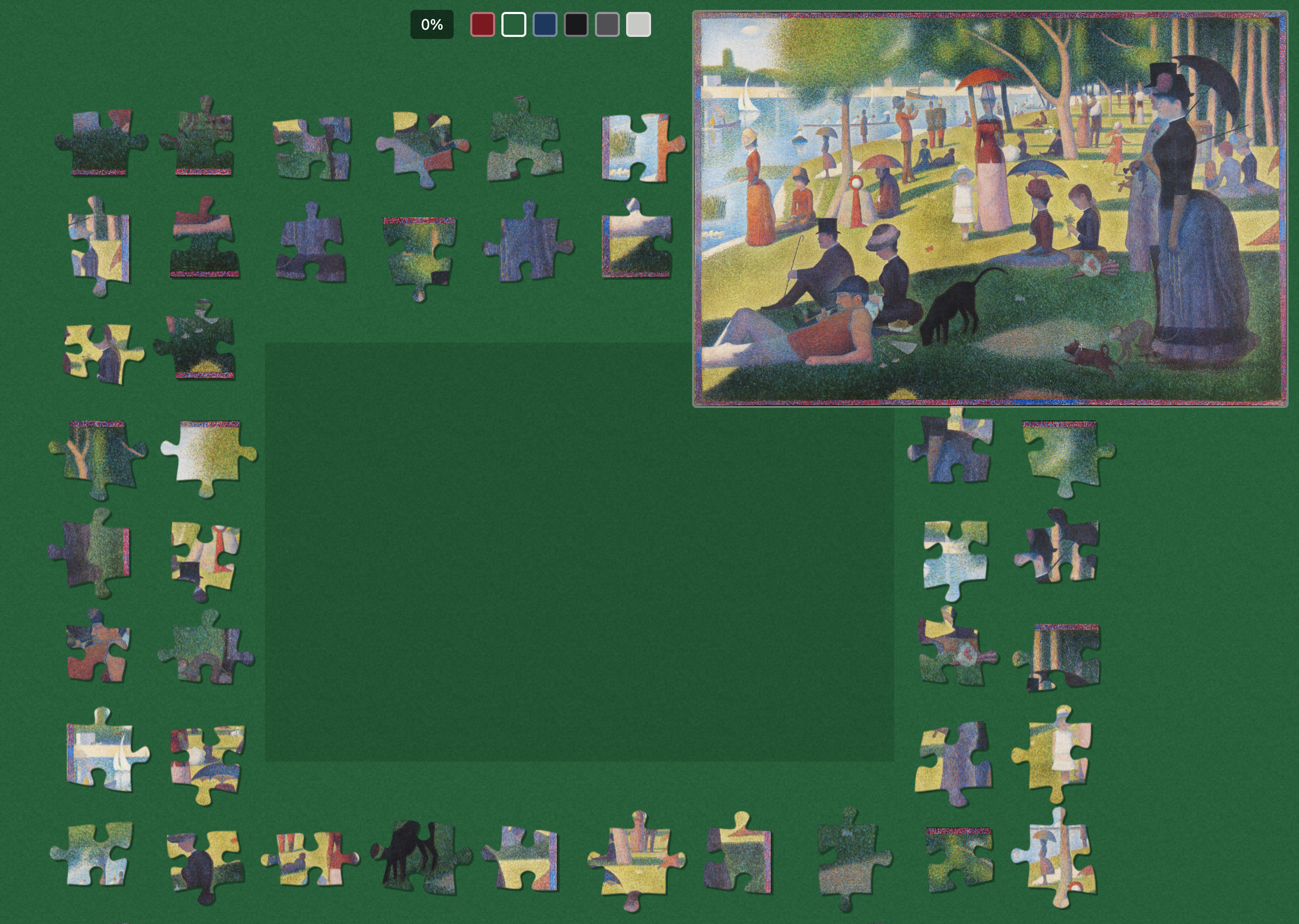
Preview the motif
Press P or click the thumbnail in the corner to show the full motif. Click again to hide it.
Note: a puzzle can be started with the preview disabled, to make it more challenging. The thumbnail is then replaced by a crossed-out eye, and pressing P does nothing.
Working with puzzle pieces
Pick up and move
Click and drag a piece or a group of pieces to move it. Drop it to place it on the puzzle area. Other players see the piece move with your name on it.
Snap pieces together
Bring two neighbouring pieces close to each other and release. If they belong together, they snap into a group and stay attached. From then on the whole group moves as one.
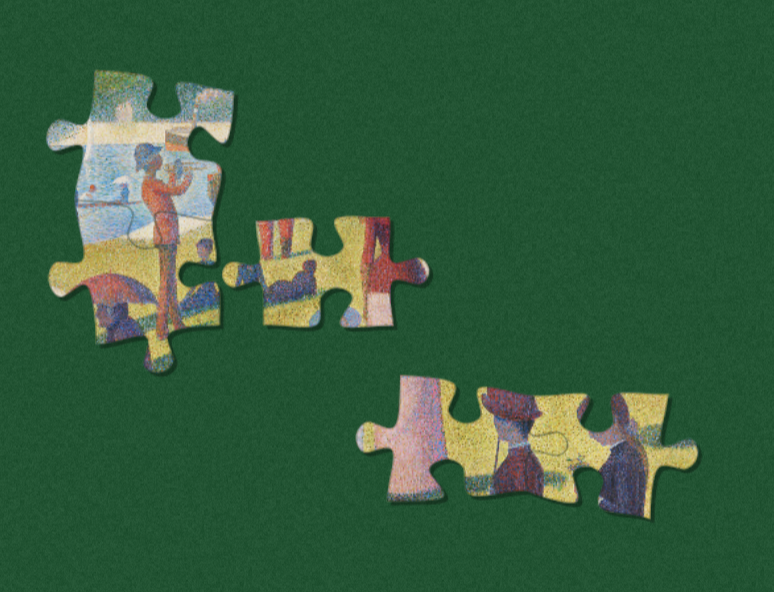
Placing pieces
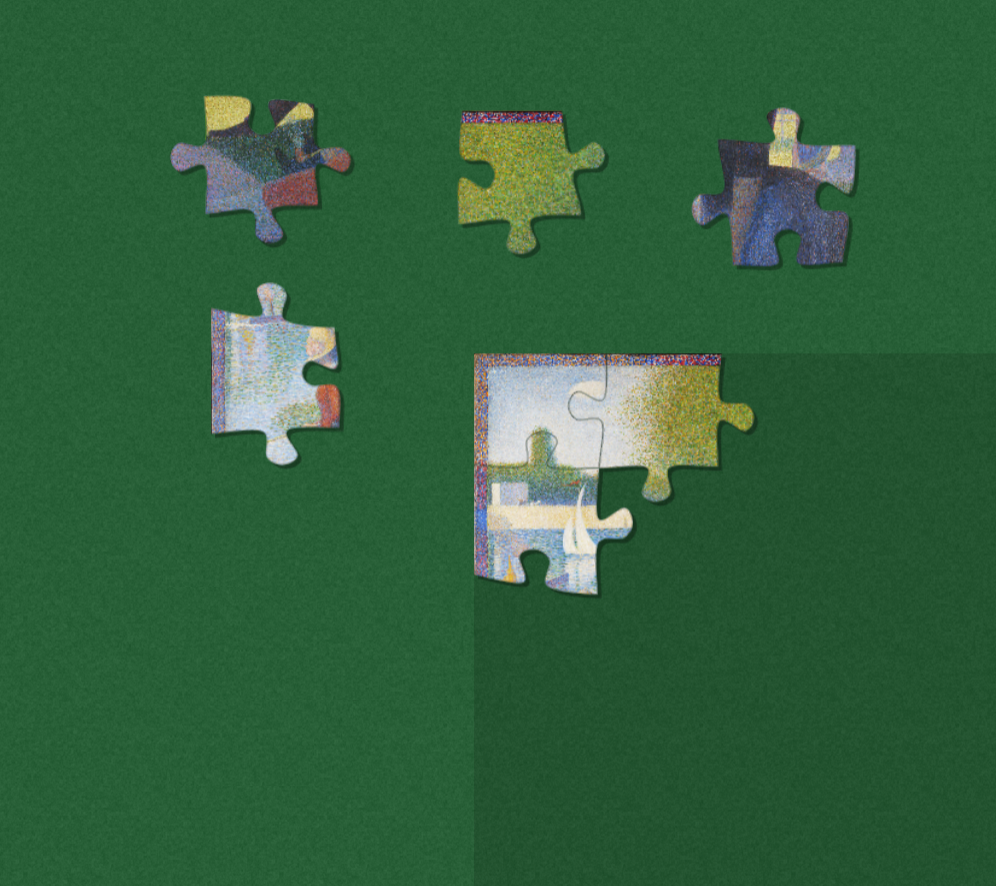
A puzzle starts with its four corner pieces already placed in the centre of the board. Pieces only count as placed once they connect, directly or through a chain of snapped neighbours, to that placed group.
Until then, pieces and the groups you build float freely on the board. This means the puzzle grows outward from the corners. You can snap pieces together anywhere to build clusters first, then bring those clusters to the placed group when you're ready.
Select several pieces at once
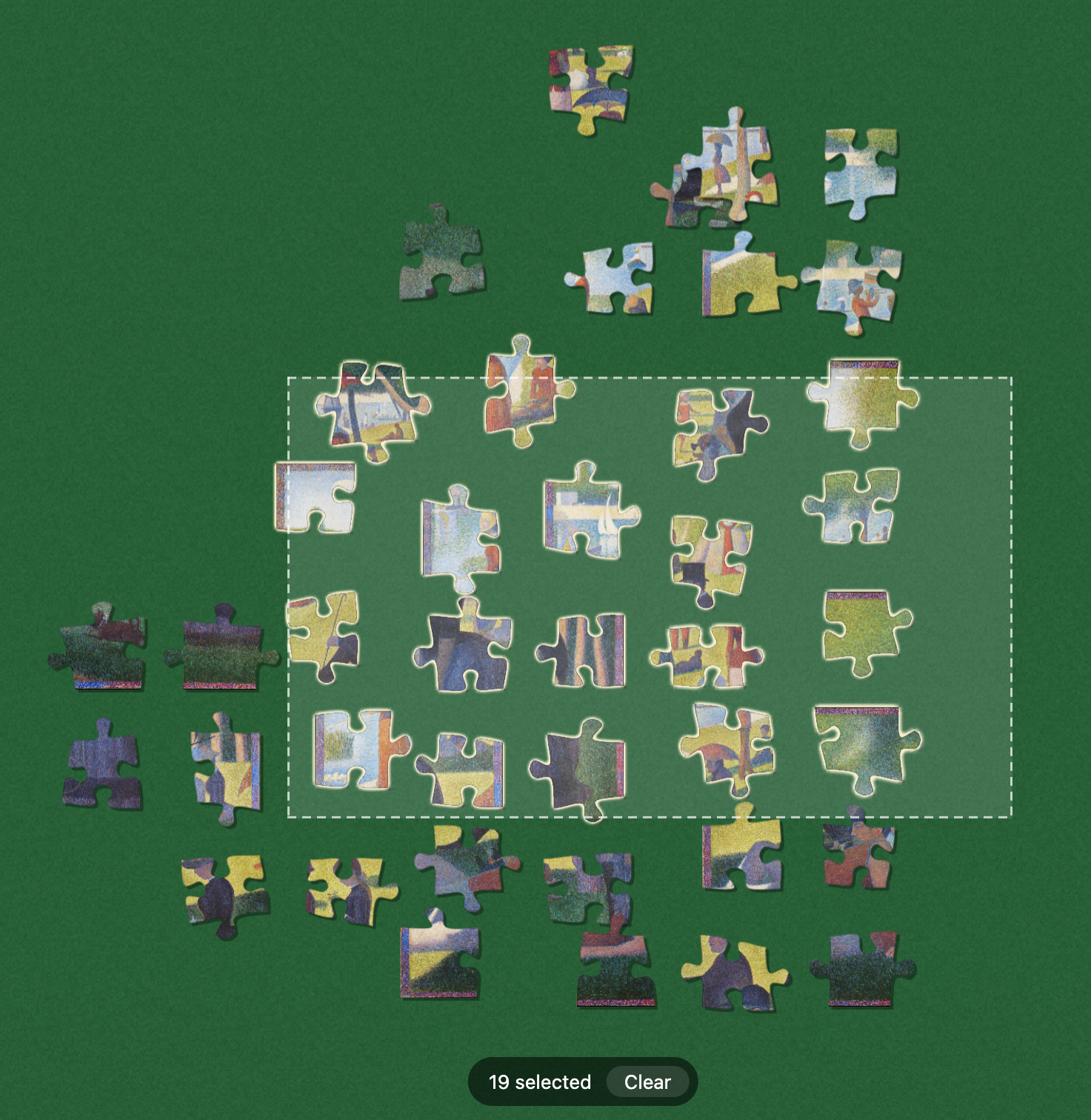
Use Right-click and drag across an empty part of the board to draw a marquee. Every piece inside the rectangle joins your selection. The same works with Ctrl + Left-click and drag, handy on a trackpad or any setup where right-click is awkward to reach. To add or remove single pieces, hold Ctrl and click them.
Once you have a selection, dragging any piece in it moves the whole bundle. That makes it easy to relocate a cluster of candidates you've gathered, or slide a partially-snapped group around as one. The Select Mode button on the side toggles a sticky mode where plain clicks add to the selection, useful for gathering a lot of pieces without holding a modifier. Click an empty spot or press Esc to clear the selection.
Sort by colour or shape
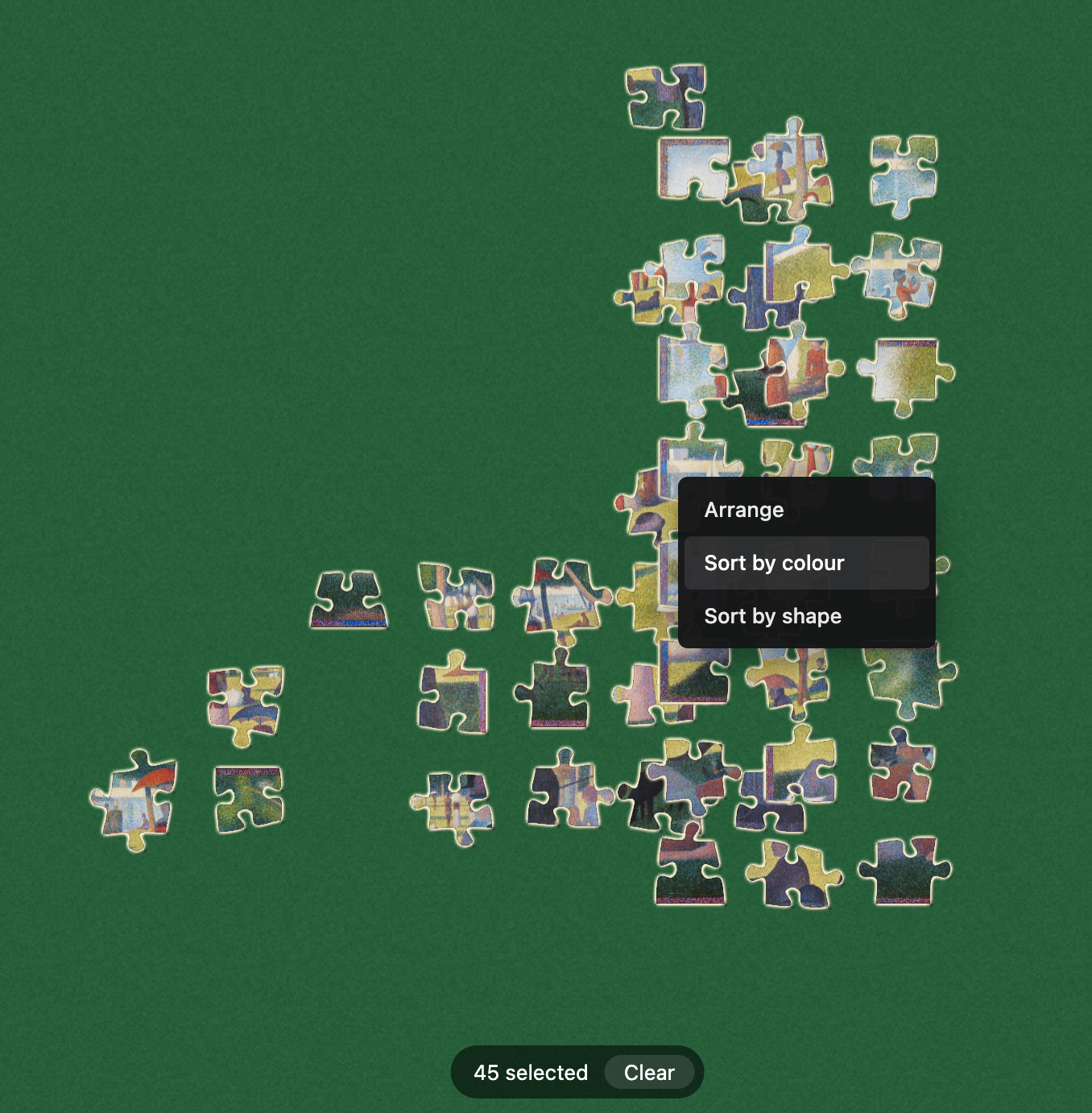
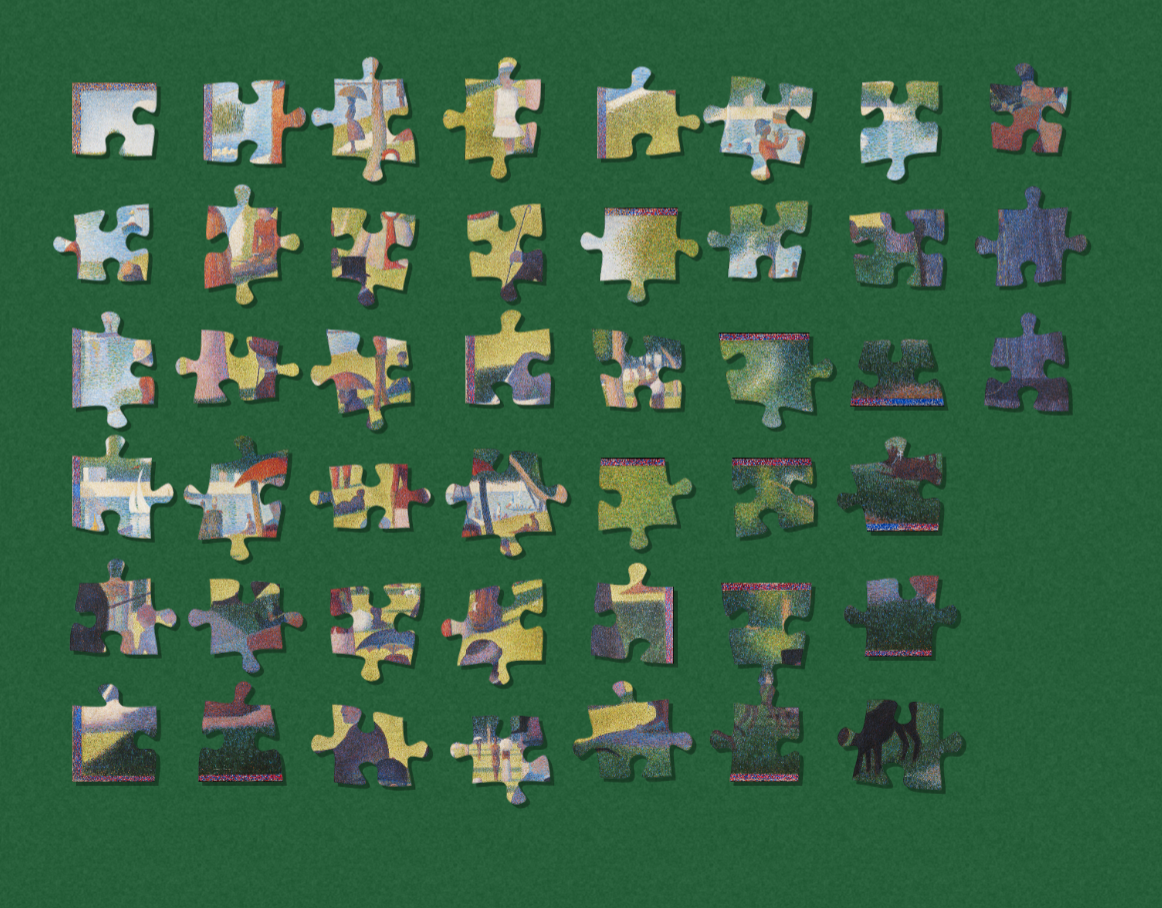
Select a handful of pieces, then Right-click on any of the selected pieces and choose 'Sort by colour' or 'Sort by shape'. Draw a rectangle to drop the sorted pieces there. Sorting is the fastest way to find the one piece with a green corner or the unique flat-edged piece you've been hunting.
Note: sorting can be disabled when starting a new puzzle, to make it more challenging. The right-click menu still offers Arrange (manual layout), just without the two sort modes.
Communicating with others
Ping a spot
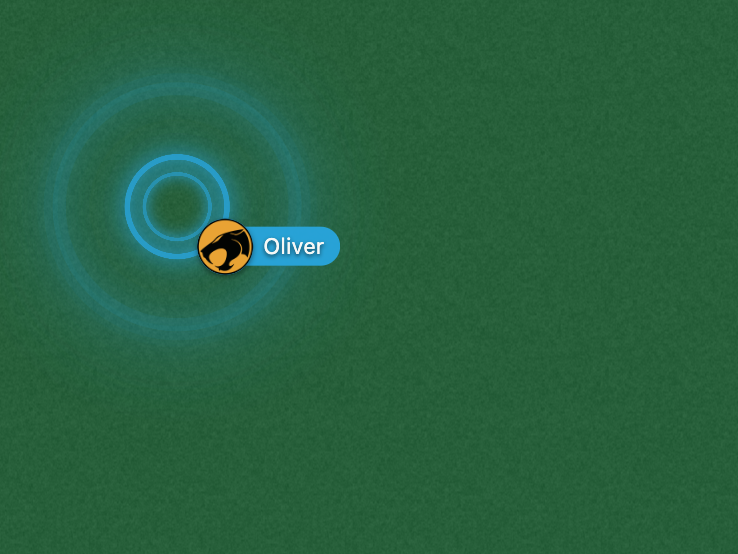
Right-click on the board and pick the ping option to drop a quick ripple at that spot. Everyone sees it for a second or two. Useful for pointing out a piece or saying this one goes here.
Emoji reactions
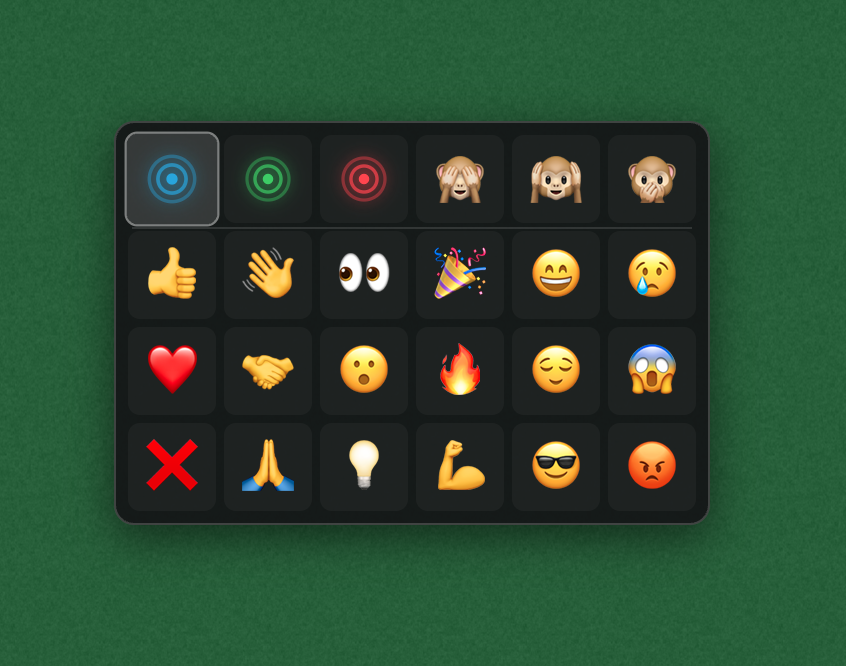
Click the emoji button to react. Your reaction floats above the board for a moment and everyone on the puzzle sees it. Use it to cheer a snap, thank another player, or react to what's happening.
The tray(advanced)
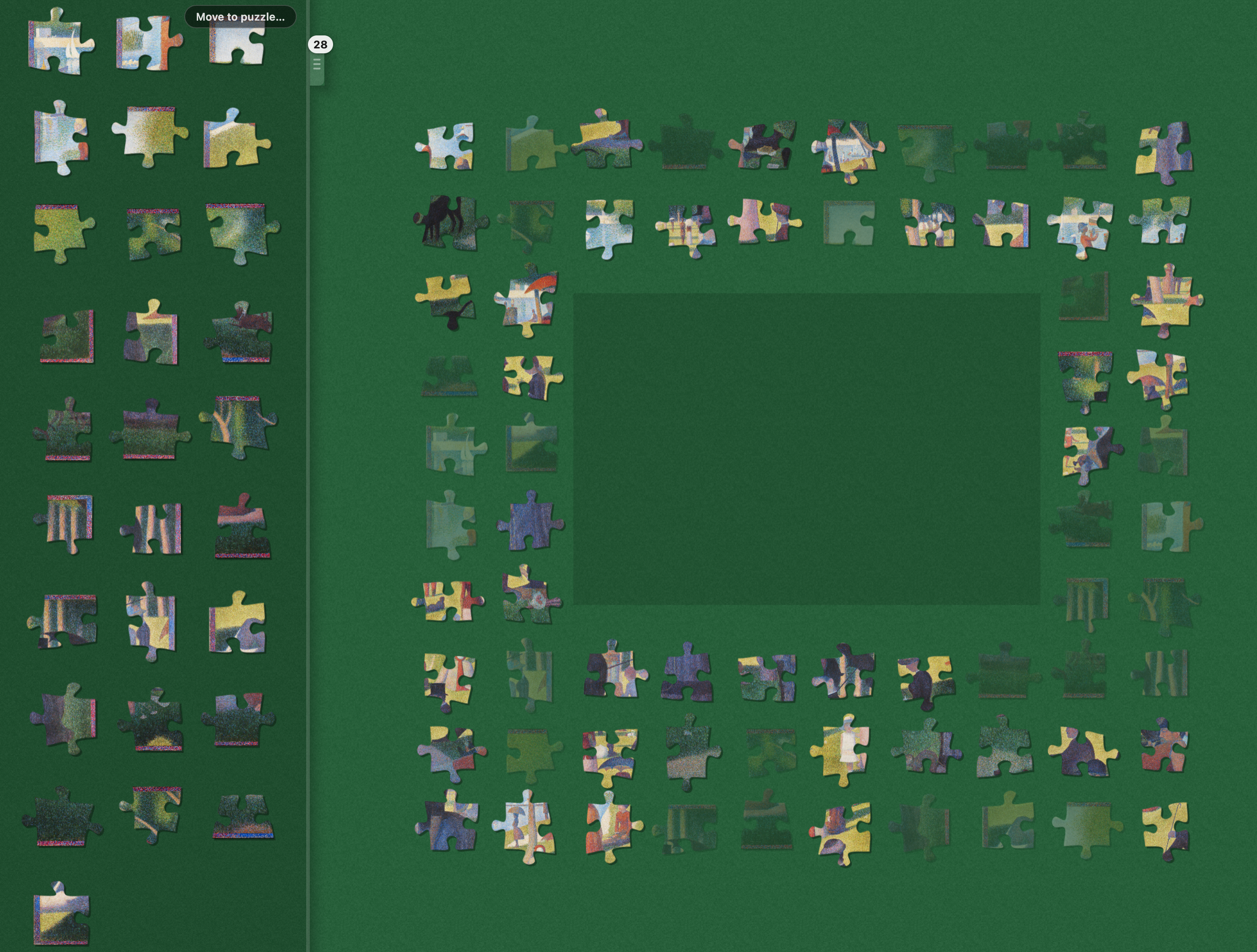
The tray is a personal workspace that slides out from the left edge. Drag pieces into it to gather candidates you want to look at together, and drag them back onto the board when you want to use them.
Pieces in the tray are still in their place on the board. The tray is just your own view of them, so nobody else sees what you've collected and nothing you do here gets in the way of others handling those pieces. In the screenshot, every edge piece sits in the tray as one starting collection while still appearing around the puzzle area for everyone else.
The tray has its own pan, separate from the board, so you can rearrange it without losing your spot on the puzzle. Press T or click the handle on its right edge to show or hide it. The Move to puzzle button empties the tray back onto the board in a tidy rectangle you draw. Unlike collecting pieces into the tray, this one really does move them on the board, and everyone else sees them land there too.
Keyboard shortcuts(advanced)
Everything has a button, but the keys are faster once you're used to them.
| Key | Action |
|---|---|
| F | Toggle fullscreen |
| P | Toggle preview |
| T | Toggle tray |
| M | Mute and unmute sounds |
| W, A, S, D or ↑, ←, ↓, → | Pan the board |
| Shift + W, A, S, D or Shift + ↑, ←, ↓, → | Pan faster |
| Ctrl + Click | Add a piece to the selection |
| Right-click and drag or Ctrl + Left-click and drag | Draw a marquee selection |
| Esc | Cancel the current action |